Minecraft Lagging on a Good PC Causes and Performance Fixes
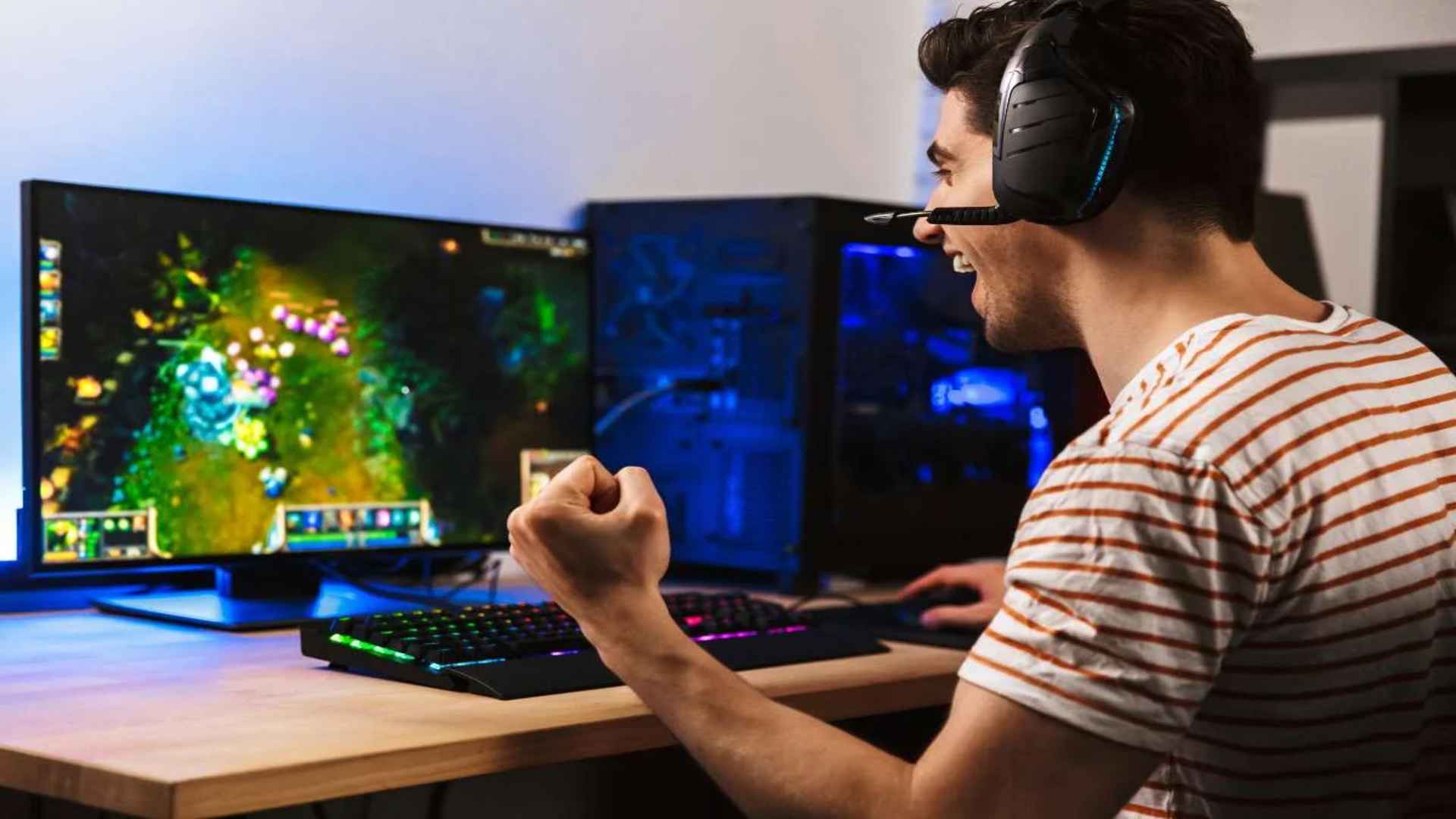
Running into frame drops and stuttering in Minecraft on a high-end computer can be frustrating for players who expect flawless performance. Despite its blocky graphics, the game relies heavily on single-threaded processor efficiency and Java memory allocation rather than pure graphics power. Identifying the root causes behind these unexpected performance hitches allows players to restore smooth gameplay quickly.
Understanding Why High-End PCs Stutter in Minecraft
Modern gaming rigs often feature powerful multi-core processors and high-end graphics cards that excel at handling complex rendering pipelines. However, Minecraft Java Edition primarily runs core game logic and world generation on a single CPU thread. This architectural limitation means that high core counts do not automatically guarantee fluid performance without targeted optimization.
Another common culprit involves default memory allocation settings within the game launcher. By default, Minecraft may only utilize a fraction of your available system memory, causing frequent garbage collection pauses. When Java periodically cleans up unneeded data, the entire game briefly freezes, leading to annoying micro-stutters during exploration.
Optimizing Java Memory and Launcher Settings
Adjusting the amount of RAM assigned to Minecraft is one of the most effective steps to eliminate stuttering. Allocating between four to eight gigabytes of memory generally provides enough headroom for detailed render distances and heavily modded sessions. However, allocating excessive memory can actually worsen garbage collection delays, so finding the right balance is key.
Players should also ensure that the game is running on their dedicated graphics processing unit rather than integrated graphics. Laptops and desktop systems with dual graphics configurations sometimes default to integrated processors for Java applications. For users troubleshooting technical hiccups, reviewing system setup steps or referring to official documentation can help verify hardware detection.
Adjusting In-Game Video Settings for Maximum FPS
In-game graphical preferences significantly impact overall frame rates, even on top-tier hardware setups. Reducing the render distance by a few chunks dramatically lowers the burden placed on world generation systems. Lowering simulation distance also reduces active entity calculations in surrounding chunks, freeing up critical processor bandwidth.
Disabling intensive visual settings like fancy graphics, smooth lighting, and entity shadows yields immediate performance benefits. Setting frame rate limits to match your monitor's refresh rate prevents unnecessary hardware straining and heat buildup. Enabling V-Sync or G-Sync can further reduce screen tearing and stabilize frame delivery during intense combat.
Using Modern Optimization Mods and Performance Boosters
Installing performance-focused mods has become standard practice for players seeking optimal frame rates on modern hardware. Lightweight open-source mod engines like Sodium or Lithium replace inefficient vanilla rendering pipelines with modern techniques. These enhancements significantly boost frame delivery without compromising visual quality or core mechanics.
Keeping graphics drivers updated and closing background applications further ensures that system resources remain dedicated to gameplay. Disabling background overlays and adjusting power plans to maximum performance prevents unexpected CPU throttling. Combining these hardware adjustments with software optimizations guarantees a fluid and enjoyable building experience.